This post will show you How to Create Pinterest Boards.
So, you’ve finally decided to give Pinterest a try, or maybe you’ve been scrolling through pins for months, saving random recipes and DIY hacks into one chaotic “Saved Pins” abyss, and now you’re realizing you need some order in your Pinterest life. Either way, welcome to the world of Pinterest boards.
Boards are like little homes for your pins. Imagine your Pinterest account as a closet. Without boards, it’s just a big messy pile of clothes you keep throwing random things into. But with boards? You’ve got neatly labeled drawers, one for jeans, one for cute tops, one for shoes you’ll probably never wear but love anyway. That’s exactly what boards do for your pins. They keep everything organized, neat, and easy to find.
And here’s the best part: creating boards is not rocket science. You don’t need a tech degree. You don’t need Pinterest to hold your hand. With a few clicks (or taps), you’ll have beautiful boards ready to show off.
So, grab your coffee, or tea if you’re one of those people, and let’s break down exactly how to create Pinterest boards, organize them like a pro, and make them work for you, whether you’re here just for fun or for growing your business.
What Exactly Is a Pinterest Board?
Before we dive into the “how,” let’s clear up the “what.” A Pinterest board is basically a collection of pins grouped together under a theme. They are just like a folder with different categories of topics for easy findings especially when someone visits your Pinterest account.
Think of it like this:
-
You want to save recipes → Create a “Quick Dinner Recipes” board.
-
You’re planning a wedding → Hello, “Wedding Inspo” board.
-
You’re obsessed with interior décor → A “Dream Living Room” board is waiting for you.
Instead of scrolling endlessly trying to remember where that one pin went (you know the one, the chocolate lava cake recipe you swore you’d try), you can just head to the right board and boom, it’s there.
Pinterest boards aren’t just for personal fun either. Businesses and bloggers use them to share their content, attract followers, and grow their brand visibility. In fact, Pinterest boards can actually help you get discovered by people searching for ideas that you’re pinning.
Why Bother Creating Pinterest Boards?
Good question. Why not just dump everything into one giant folder like a digital junk drawer? Here’s why:
-
Organization – You’ll actually be able to find what you’re looking for. Imagine scrolling through your account just because you are looking for one pin design? when you can easily click on a particular board for it. Pinterest board will help keep your account organized for easy findings.
-
Attracting Followers – People love following specific boards that match their interests. These is one of the interesting parts of creating Pinterest board. Once your Pinterest account is well organized and easier for your audience to navigate through your account, they will definitely follow you.
-
SEO Magic – Pinterest is basically a search engine. Keyword-rich board names help people find your pins. Indicating keywords on each Pinterest board will let Pinterest understand what your Pinterest account is all about, and by doing this they will push you pins to the right audience.
-
Planning Made Easy – Boards are lifesavers for weddings, travel, birthdays, or even holiday gift lists.
-
Business Growth – If you’re a blogger, influencer, or small business owner, boards showcase your niche and bring in traffic.
So yeah, boards aren’t optional. They’re the backbone of your Pinterest strategy.
Step-by-Step Guide: How to Create a Pinterest Board
Ready to roll up your sleeves? Let’s get practical. Creating a board takes less than two minutes, but I’ll Walk you through it like we’re doing it together.
Creating a Board on Mobile
-
Open your Pinterest app.
-
Tap the little “+” button at the bottom of the screen.
-
Select “Board.”
-
Give your board a name. (Pro tip: Don’t call it “Random Stuff I Like.” Use something people would actually search for, like “Healthy Smoothie Recipes.”)
-
Decide if you want it public or secret. (Public means the world can see it; secret is just for you.)
-
Save your first pin to officially create it.
That’s it. Simple, right?
Creating a Board on Desktop
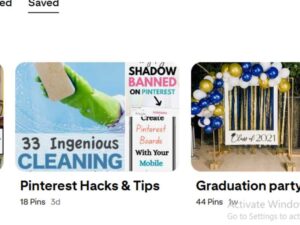
-
Log into Pinterest on your browser.
-
Click the “+” button on the top right corner.
-
Select “Board.”
-
Enter a keyword-rich name.
-
Add a short description so Pinterest knows what your board is about.
-
Hit “Create,” and you’re done.
See? No tech genius required.
Here is a video on How to create Pinterest boards
How to Organize Your Pinterest Boards Like A Pro
Now, let’s not stop at just creating a board. You want your boards to look good and actually work for you. Here’s how to organize them:
-
Use Keywords in Board Names
Don’t go vague. “Food” is boring. “30-Minute Dinner Recipes” is specific and searchable. -
Write Descriptions
Every board has a description box. Fill it with keywords so Pinterest knows when to show your board in search results. -
Arrange Boards by Priority
Put your most important boards at the top of your profile. If you’re a fashion blogger, your “Fall Outfit Ideas” board should be front and center, not hiding behind “Random DIYs.” -
Use Sections Within Boards
Pinterest lets you break boards into sections. For example, in your “Christmas Recipes” board, you could have sections like “Cookies,” “Drinks,” and “Main Dishes.” Perfect for keeping things extra neat.
Tips for Optimizing Pinterest Boards
If you want your boards to do more than just look pretty, optimization is key.
-
Choose Eye-Catching Covers – Pick or design cover photos that match your brand or style.
-
Stay Niche-Specific – A board about “Home Décor” should not randomly include cake recipes. Keep each board focused.
-
Pin Consistently – A board with only three pins looks abandoned. Keep adding fresh content.
-
Archive Irrelevant Boards – Don’t delete them (you might want them later). Just archive the ones that don’t fit your style anymore.
-
Check Analytics – If you’re using Pinterest for business, look at which boards get the most engagement and focus on them.
Personal vs. Business Boards
Pinterest isn’t just for planning your dream vacation or collecting memes. It’s also a goldmine for businesses. Let’s break it down.
-
Personal Use
Maybe you’re planning your future kitchen remodel. Maybe you just want to keep all your skincare hacks in one place. Boards make your life easier by keeping everything neatly sorted. -
Business Use
For bloggers, online shops, or service providers, boards are like digital portfolios. A food blogger might have boards for “Vegan Recipes,” “Desserts,” and “Quick Meals.” A clothing boutique might have “Summer Dresses” and “Workwear Inspiration.” Each board works like a category in a store, showing off what you’ve got.
Mistakes to Avoid When Creating Boards
Okay, let’s get real. Some Pinterest users create boards that make no sense. Don’t be that person. Here are common mistakes you should avoid:
-
Using Vague Names – “My Stuff” or “Cool Ideas” won’t help anyone (including you).
-
No Description – That’s wasted real estate. Always add keywords.
-
Mixing Random Pins – A home decor board with memes and chicken recipes? Chaos. Keep it niche.
-
Too Many Secret Boards – Secrets are fine, but if every board is hidden, no one will ever find your content.
-
Neglecting Your Boards – Pinning once every three months won’t cut it. Keep them fresh.
Advanced Tips for Power Users
Once you’ve got the basics down, here’s how to take your boards to the next level:
-
Group Boards
These are boards where multiple people can pin. Great for collaboration or getting more exposure. -
Collaboration
Working on a project with a friend or business partner? Create a shared board so everyone can add ideas. -
Analytics Tracking
If you’ve switched to a business account, Pinterest gives you insights on what boards are performing best. Use that data to double down on what’s working.
At this point, you know what Pinterest boards are, why they matter, how to create them, and even how to optimize them like a pro. Whether you’re using Pinterest for personal fun (collecting puppy pictures, anyone?) or for building your business, boards are the backbone of it all.
So, stop scrolling mindlessly and start creating your boards. Think of them as your digital vision boards, your online scrapbooks, or your organized little corners of the internet. And the best part? Once you set them up, they basically work for you, bringing in inspiration, ideas, and maybe even new followers while you’re off binge-watching your favorite series.
Now go create that first board. Trust me, once you start, you won’t stop. You’ll suddenly have a board for recipes, one for workouts you’ll “totally do someday,” another for home office ideas you can’t afford yet, and at least three for vacation spots you’re dreaming about. But hey, that’s the beauty of Pinterest.
This post showed you How to Create Pinterest Boards.
You May also like:
How to Make Money on Pinterest (Even If You’re Starting from Scratch)